Managing your team
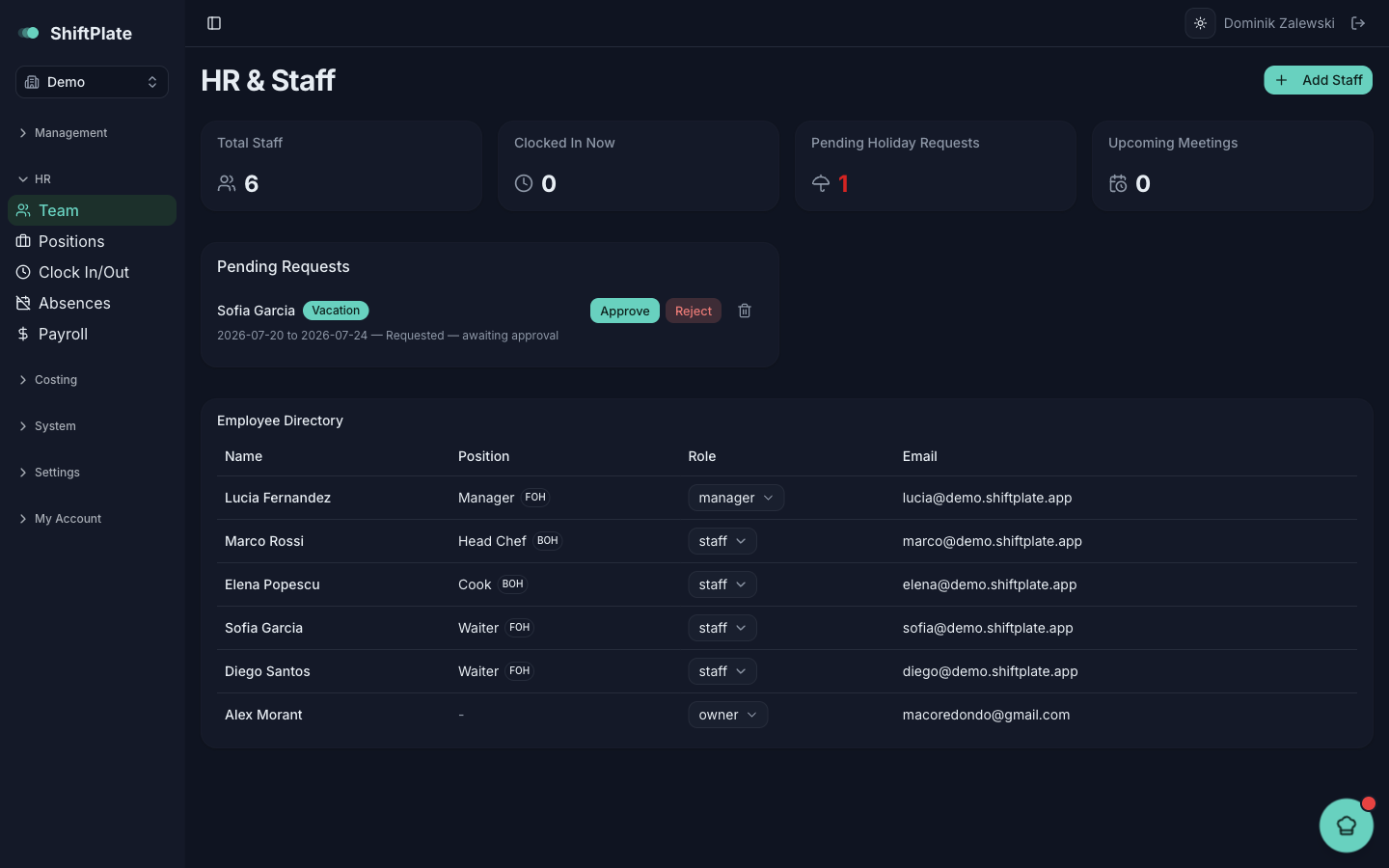
Your team lives under Team in the sidebar (the page is titled HR & Staff). It's the home for everyone who works for you, and the record that everything else — the rota, absences, payroll — draws on.
Add a staff member
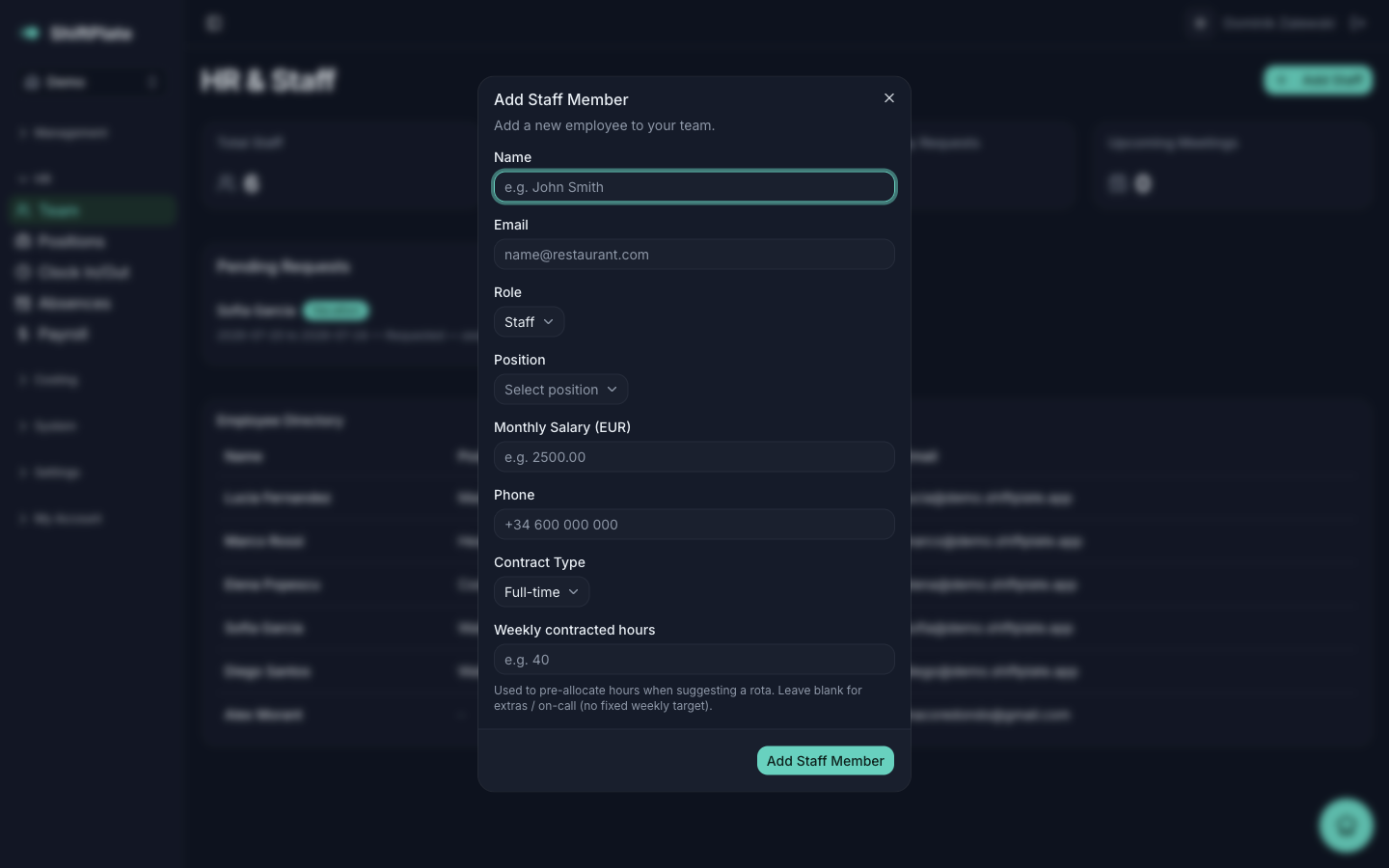
Click Add Staff (top right) to open the Add Staff Member form:
- Name and Email — the only required fields.
- Role — what they can access in ShiftPlate (Owner, Manager, Staff, or a custom role). This is about app permissions, not their job.
- Position — their job, grouped by Back of House and Front of House (e.g. Sous Chef, Waiter). Set these up first under Positions if the list is empty.
- Monthly Salary (EUR) — everyone is on a fixed monthly salary, so this is a monthly figure, not an hourly rate.
- Phone and Contract Type (Full-time, Part-time, or Temp).
- Weekly contracted hours — used to pre-allocate hours when suggesting a rota. Leave it blank for extras or on-call staff with no fixed weekly target.
Press Add Staff Member to save.
Weekly contracted hours drives the rota, not pay. It's how Suggest week knows how many hours to plan for each person — pay always comes from the fixed monthly salary.
The Employee Directory
Everyone shows up in the Employee Directory table — name, position, role, and email. Owners can change someone's role right there in the table; editing and removing staff is owner-only. Click any row to open that person's full profile.
Set up your positions
Positions (in the sidebar) are your job titles, split into Back of House and Front of House. Click Add Position, give it a Position Name and a Department, and it becomes available in the Position dropdown when you add or edit staff. Positions are just labels for organising your team — they're separate from the access Roles that control permissions.
A person's profile
Opening a staff member shows their profile, with their details and salary (hidden behind a click for privacy) and an Include in rota toggle. It's organised into tabs:
- Personal Details — contact info, address, bank/tax details, and next of kin.
- Performance Reviews — rated reviews with strengths and areas to improve.
- Goals — objectives with optional incentives, marked Active, Completed, or Missed.
- Meetings — schedule 1:1s, reviews, or probation chats, and mark them complete.
Sensitive fields like bank IBAN and tax number are visible only to owners and the person themselves — managers can't see them.
What's next
With your team in place, Time off & absences covers booking and approving holidays, and Worked hours & clock-ins covers attendance.