Time off & absences
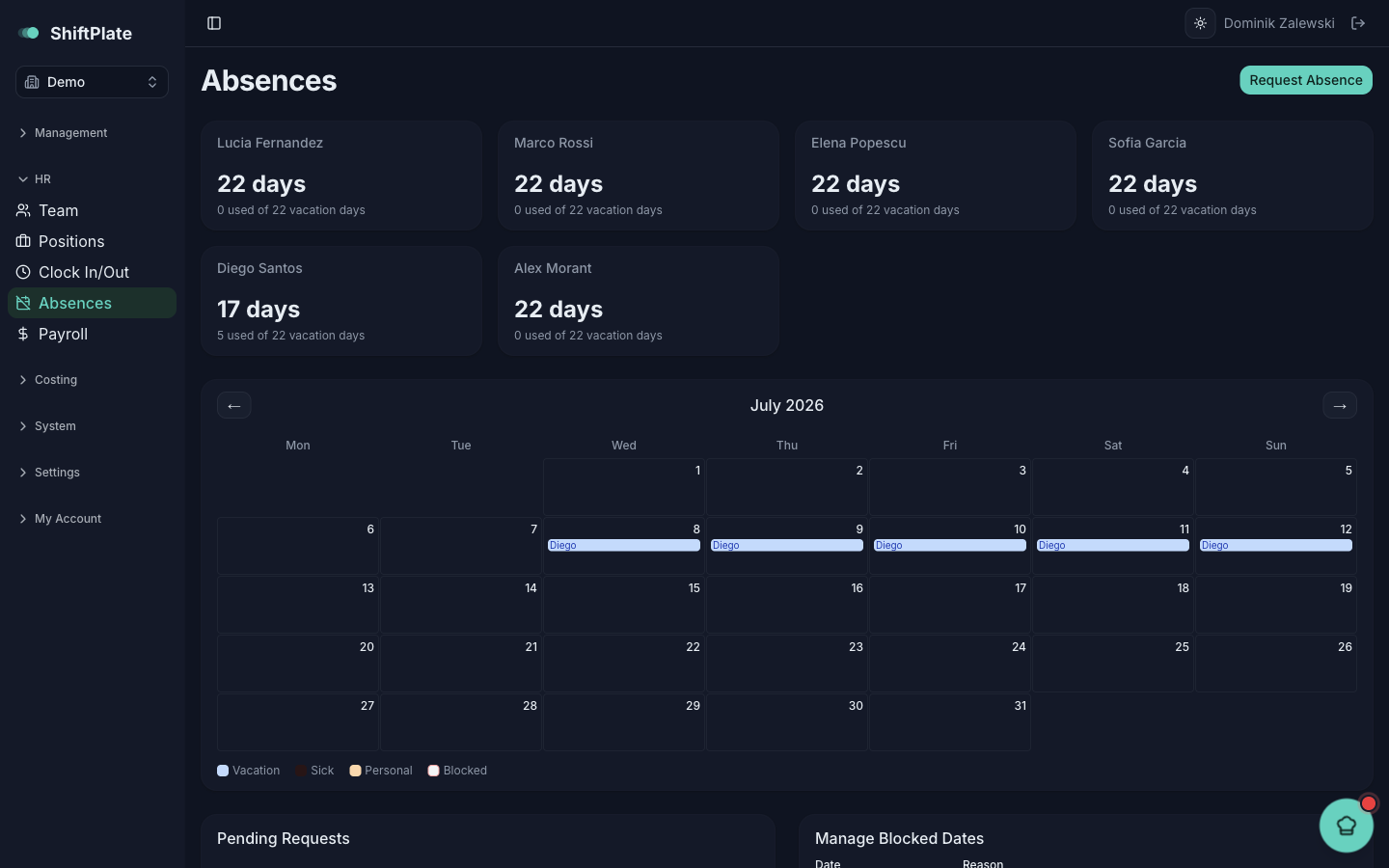
Holidays, sick days, and personal leave all live under Absences in the sidebar. The page shows each person's remaining balance, a calendar of who's off, and the requests waiting on you.
Request time off
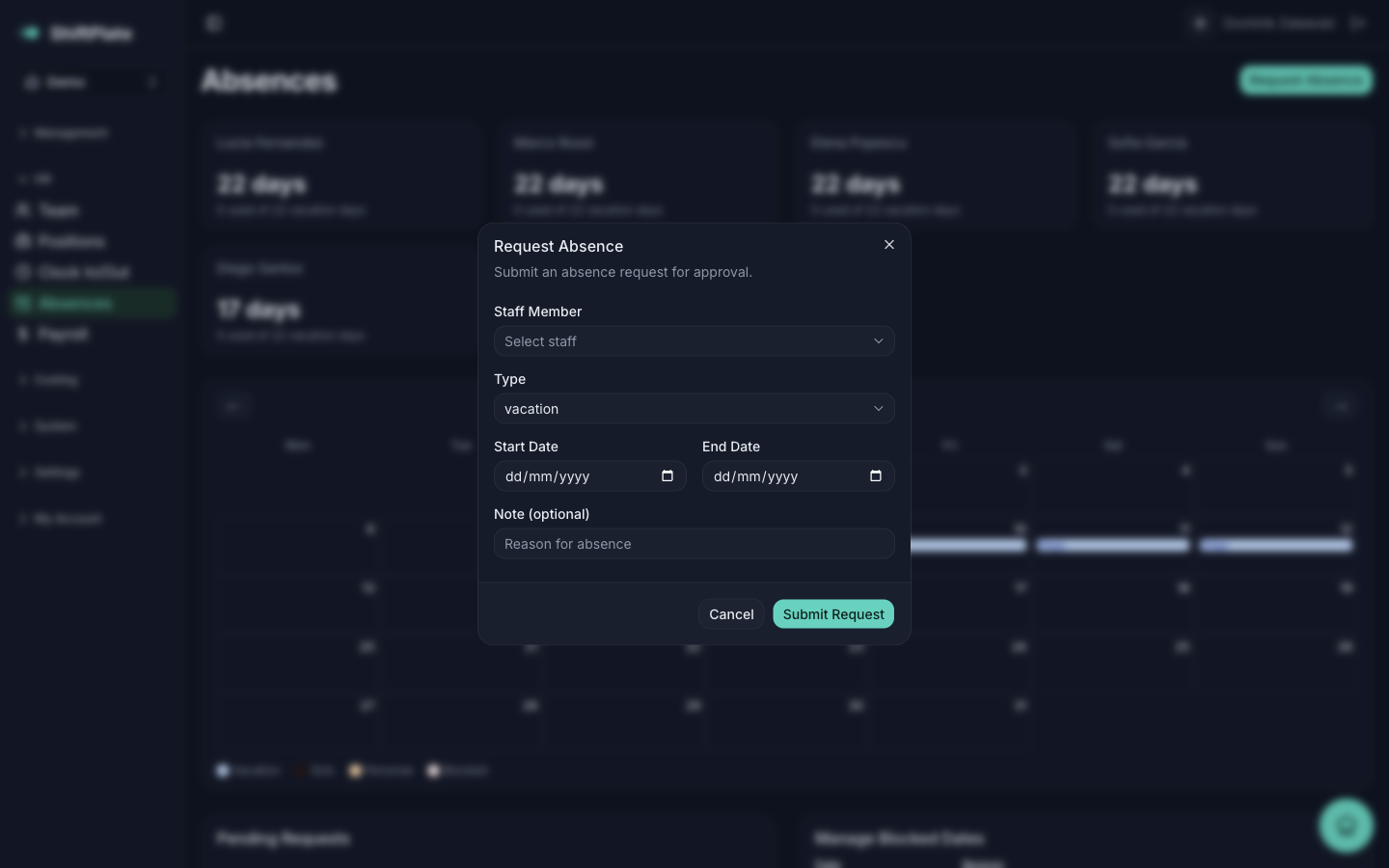
Click Request Absence and fill in:
- Staff Member
- Type — Vacation, Sick, or Personal
- Start Date and End Date
- Note (optional) — a reason, if useful
Press Submit Request. It's created as pending and waits for approval.
If the dates overlap a blocked date, you'll see a warning — but it won't stop you submitting. It's a heads-up, not a hard block.
Approve or reject
Pending requests appear in the Pending Requests list (on the Absences page, and mirrored on the Team page). Each shows the person, type, dates, and note, with Approve and Reject buttons. Approving a vacation request deducts those days from that person's balance.
Balances
Each person has a yearly vacation allowance, and the balance cards show how many days they've used and how many remain. Only approved vacation counts against the balance — sick and personal days are tracked but don't draw it down.
Block out dates
Use Manage Blocked Dates to mark days when leave shouldn't be taken — a fully-booked weekend, a public holiday you're trading through, your busiest week of the year. Add a Date and an optional Reason, and it shows up as Blocked on the calendar and as a warning on any request that overlaps it.
Blocked dates guide rather than enforce: someone can still request leave on a blocked date, but everyone sees the clash before it's approved, so it rarely slips through by accident.
What's next
Booked and approved time off feeds straight into the rota and payroll. Next: Worked hours & clock-ins — tracking the hours people actually work.