Worked hours & clock-ins
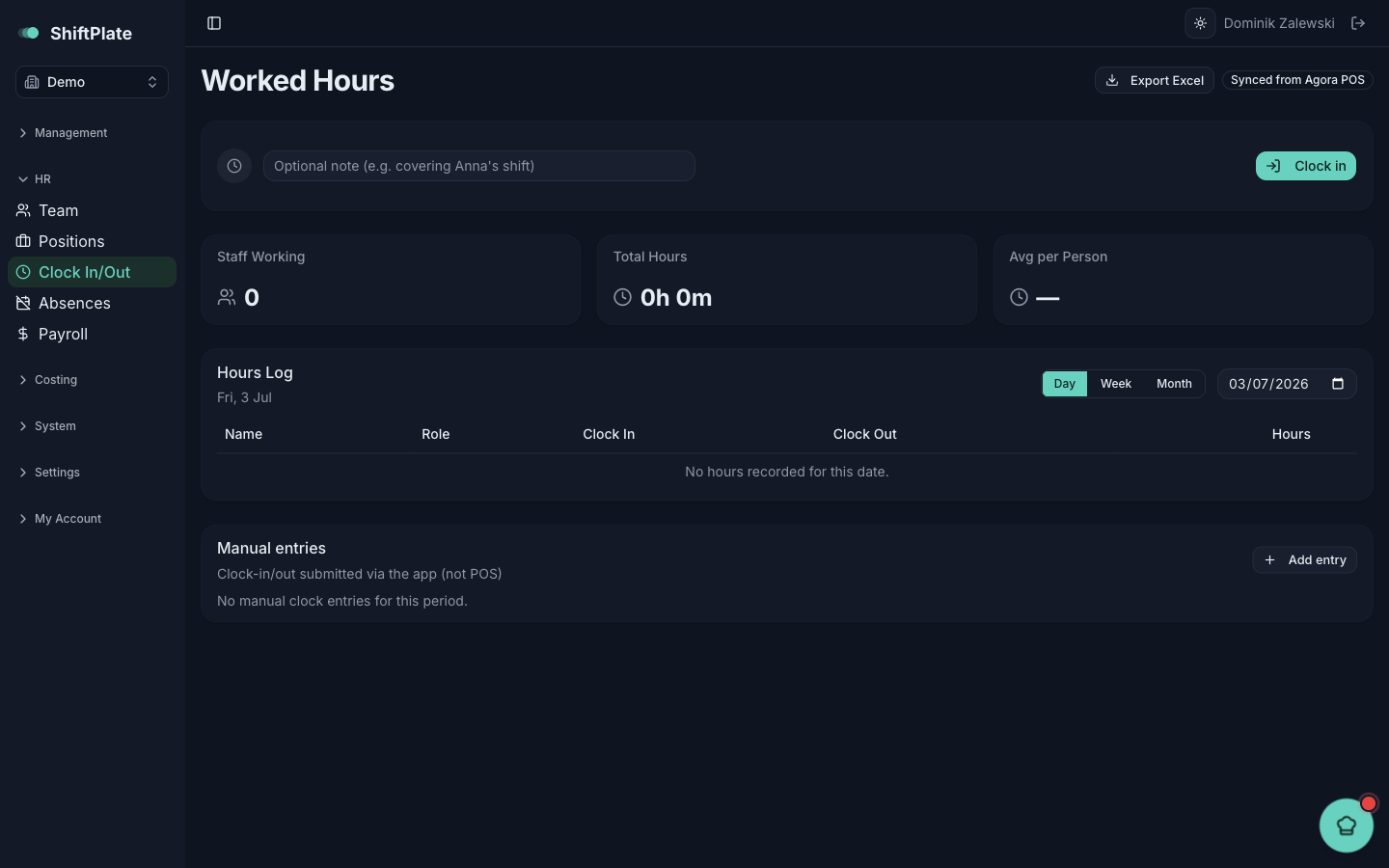
Where the rota is the plan, this is what actually happened. Under Clock In/Out in the sidebar (the page is titled Worked Hours), you'll find the real hours your team worked, pulled in automatically from your POS.
Where the hours come from
Most hours come straight from your till — the page shows a Synced from Agora POS badge. The Hours Log lists them by person, and you can switch between Day, Week, and Month views. Up top, headline tiles show how many are working, total hours, and the average per person.
Clocking in from the app is also possible — the Clock in / Clock out buttons record a shift with an optional note — and those land in a separate Manual entries table.
Fix a missed or wrong clock-out
People forget to clock out. ShiftPlate flags the likely ones — a shift running long gets a "Likely forgot to clock out" or "Check clock-out" note. To fix one, use the pencil (Edit times) on the row to correct the clock-in or clock-out. You can also Add clock entry for someone who forgot to clock in at all.
Editing a POS row is a local correction: a later POS sync can overwrite it. If you need the fix to stick, correct it in the POS terminal too — the app warns you of this when you edit an Agora entry.
Auto clock-out
So a single forgotten clock-out doesn't log a 14-hour shift, ShiftPlate closes forgotten ones automatically. Any shift left open overnight — or recorded at over 16 hours — is capped at a time you choose.
Set that time under Settings → Rota → Auto clock-out, in Close shifts at: 22:00, 23:00, midnight, or into the small hours. Midnight — the end of the business day — is the default. It only ever touches past days, never today, and Pepper leaves a note when it closes or trims a shift so you know to check it.
If a clock-out was auto-closed at the cut-off time but the person actually left earlier or later, just edit the entry to the real time — auto clock-out is a safety net, not the final word.
What's next
Worked hours and salaries come together in the last piece: Payroll.