Review and confirm an invoice
An invoice at Awaiting Review has been read but hasn't touched your prices yet. Reviewing it is where you check the machine's work and give the go-ahead. Nothing changes in your costing until you confirm, so there's no risk in looking around first.
Open it by clicking the row in Invoice History.
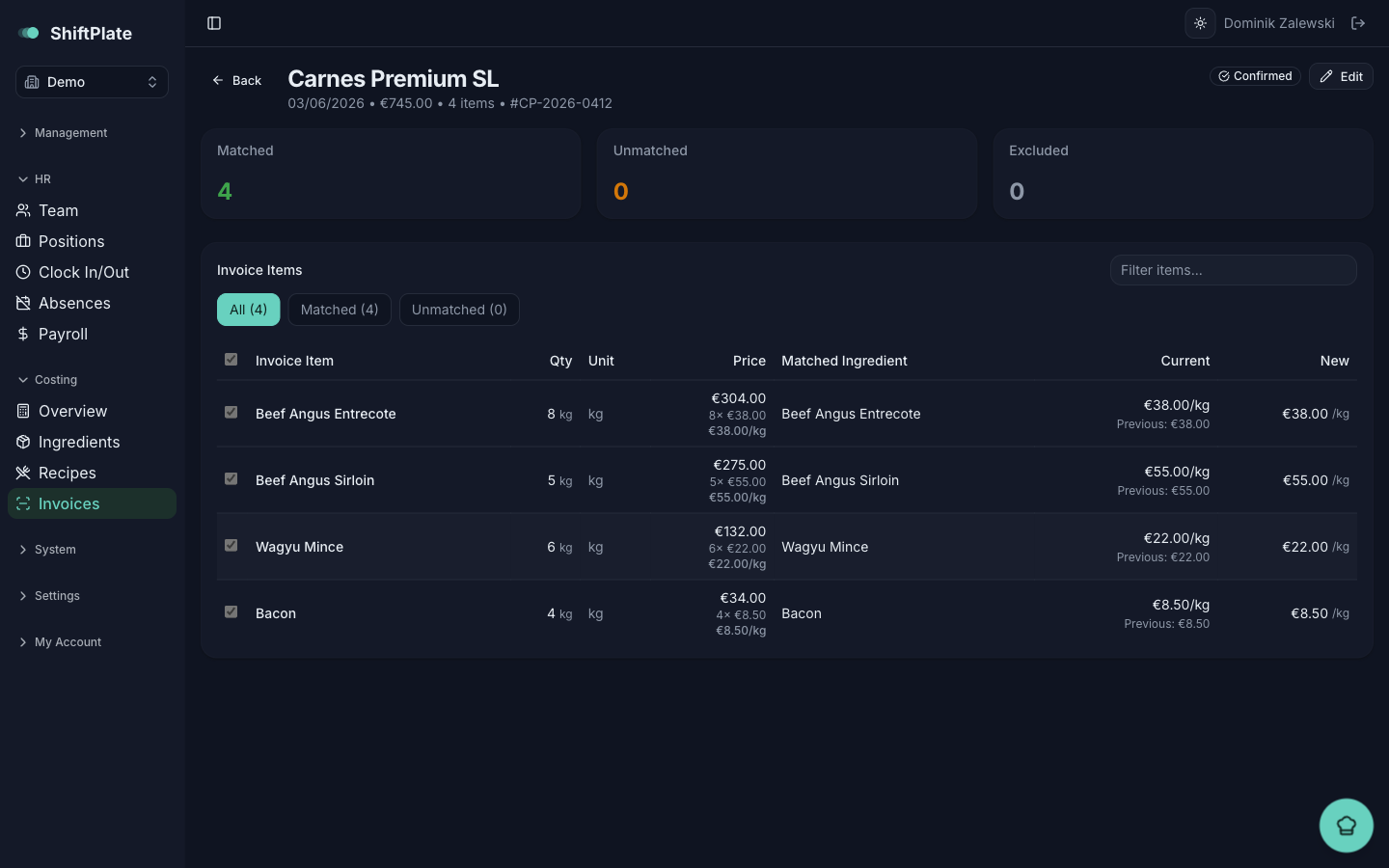
Check the invoice details
Along the top you'll see the supplier, date, total, and invoice number. Anything ShiftPlate wasn't sure about is editable — click to fix a wrong supplier name or a missing invoice number. If the supplier reads "Unknown Supplier", set it now, because the price history is tracked per supplier.
Go through the line items
The Invoice Items table is the heart of the screen. Each row is one thing on the invoice, with its quantity, unit, and price, and — crucially — the Matched Ingredient it maps to in your costing. The Current and New columns show what that ingredient costs now versus what this invoice would set it to.
The three cards above the table keep score: Matched, Unmatched, and Excluded.
Work down the list and check three things:
- Are the prices right? Quantity and price are editable — click to correct anything OCR misread. A row flags itself when a price jumps sharply (for example, "was €4.20, now €9.10"), which is usually worth a second look.
- Is each row matched to the right ingredient? If a row is unmatched or matched to the wrong thing, fix it — that's covered in Fix a mismatched ingredient.
- Should anything be left out? Non-ingredient lines (a delivery charge, a returned item) can be excluded so they don't affect prices.
Shortcuts that save time
You don't have to match every row by hand:
- Auto-select High Confidence accepts every match ShiftPlate is confident about, so you're left with only the tricky ones.
- Apply Previous reuses the matches from this supplier's last confirmed invoice — handy for a supplier whose invoices always look the same.
- Re-scan reads the image again from scratch if the first pass came out garbled.
- Save Progress keeps your edits without confirming, so you can come back later.
The more invoices you confirm for a supplier, the less matching you'll do. ShiftPlate remembers each match and applies it next time, so a familiar supplier eventually comes through almost ready to confirm.
Confirm
When the matches and prices look right, press "Confirm & Update Prices". In one step ShiftPlate updates the supplier prices, pushes the new costs into your ingredients and recipes, and records the spend as an expense.
If it can't yet confirm — say a required detail is missing — the button stays disabled and the Confirmation Summary below the table tells you what's blocking it.
See what changed
If any dishes were affected, a Recipe Impact panel appears showing each recipe's old and new cost and margin — the payoff for doing the review. Give it a glance, then Dismiss & Go Back. The invoice is now Confirmed.
Changed your mind after confirming?
Open the confirmed invoice and press Edit. ShiftPlate unlocks it for changes (removing the expense it created), and you can adjust and re-confirm.
What's next
The one review task that trips people up most is matching — so next up: Fix a mismatched ingredient.