Upload and scan an invoice
This is the everyday task: you've got a supplier invoice, and you want ShiftPlate to read it. It takes under a minute of your time — the reading happens in the background.
Open the scanner
Go to Invoices in the sidebar. The upload area sits at the top of the Invoice Scanner page, above your Invoice History.
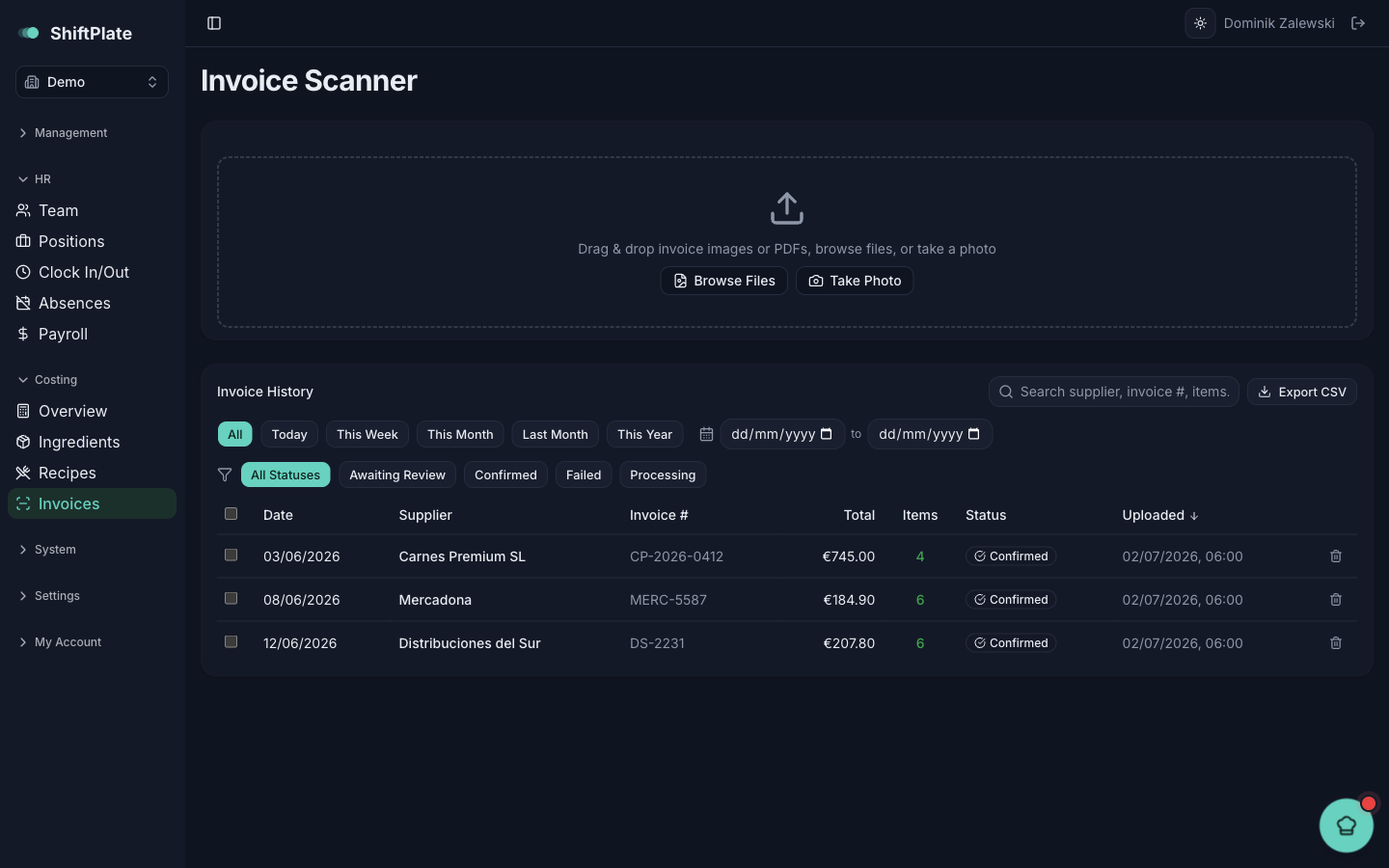
Add the invoice
You have three ways to add one:
- Drag and drop an image or PDF straight onto the dropzone.
- Browse Files — pick one or more image or PDF files from your computer.
- Take Photo — on a phone or tablet, open the camera and snap the invoice there and then.
You can add several files at once. Each one becomes its own invoice unless you tell ShiftPlate otherwise (see below).
If one invoice spans several pages
Big deliveries often come as two or three photos of the same invoice. When you've added more than one file, tick "These are pages of the same invoice" and put them in order with the arrows. ShiftPlate will read them as a single invoice instead of several.
Only tick this when the pages genuinely belong to one invoice. Two separate invoices merged into one will muddle the totals and line items.
Start the scan
Press the button at the bottom — it reads "Process Invoices" (or "Process as Single Invoice" when you've merged pages). Your invoices are queued and the reading happens in the background, so you can carry on working or upload more.
Watch it come through
Each invoice appears in Invoice History below, starting as Processing (with a spinner). When ShiftPlate has read it, the status flips to Awaiting Review and you'll get a "ready for review" notice. That's your cue to open it.
A few things you might see instead:
- Delivery Note — the scan found no priced lines, so there's nothing to confirm. This is normal for delivery notes and packing slips.
- Failed — the image couldn't be read. Open it and press Re-scan, or take a clearer photo and upload again.
- Auto-Confirmed — for suppliers you've set to auto-confirm, a clean invoice can update prices without review. You'll still see it in the history.
Uploaded the same invoice twice? ShiftPlate spots duplicates by their contents and skips them, so you won't double up on prices.
What's next
Once an invoice reaches Awaiting Review, open it and check what ShiftPlate found — that's Review and confirm an invoice.