Build your weekly rota
Here's how to actually put a week together — by hand, or with ShiftPlate drafting it for you.
Drag someone onto a day
The quickest way: drag a name from the Staff pool onto a day in the FOH or BOH lane. A New shift dialog opens with:
- Start and End times, pre-filled with sensible defaults for that section.
- Section — FOH or BOH. If the person belongs to a section already, it's locked to theirs (you'll see "fixed to their section").
Press Add shift. To move a shift to another day, just drag its chip there.
Add a shift from the button
Prefer a form? Click Add Shift at the top right and fill it in:
- Staff Member, Section, Date
- Start Time and End Time
- Notes (optional)
Then Create Shift.
Setting an end time earlier than the start makes an overnight shift — handy for a close that runs past midnight.
Edit or remove a shift
Click a shift chip to open its editor, where you can adjust the Start, End, and Section, or Remove it. Hovering a chip also shows an ✕ to delete it quickly.
ShiftPlate warns you before likely mistakes — rostering someone who's on approved holiday ("is on approved holiday… Roster anyway?"), or giving someone a second shift on a day they already work.
Let ShiftPlate draft the week
Suggest week drafts a rota for you. On an empty week it plans from scratch. On a week that already has shifts, it asks how to proceed:
- Fill the gaps — keep what's there and add everyone's remaining contracted hours around it.
- Replace everything — clear the week and plan it all fresh.
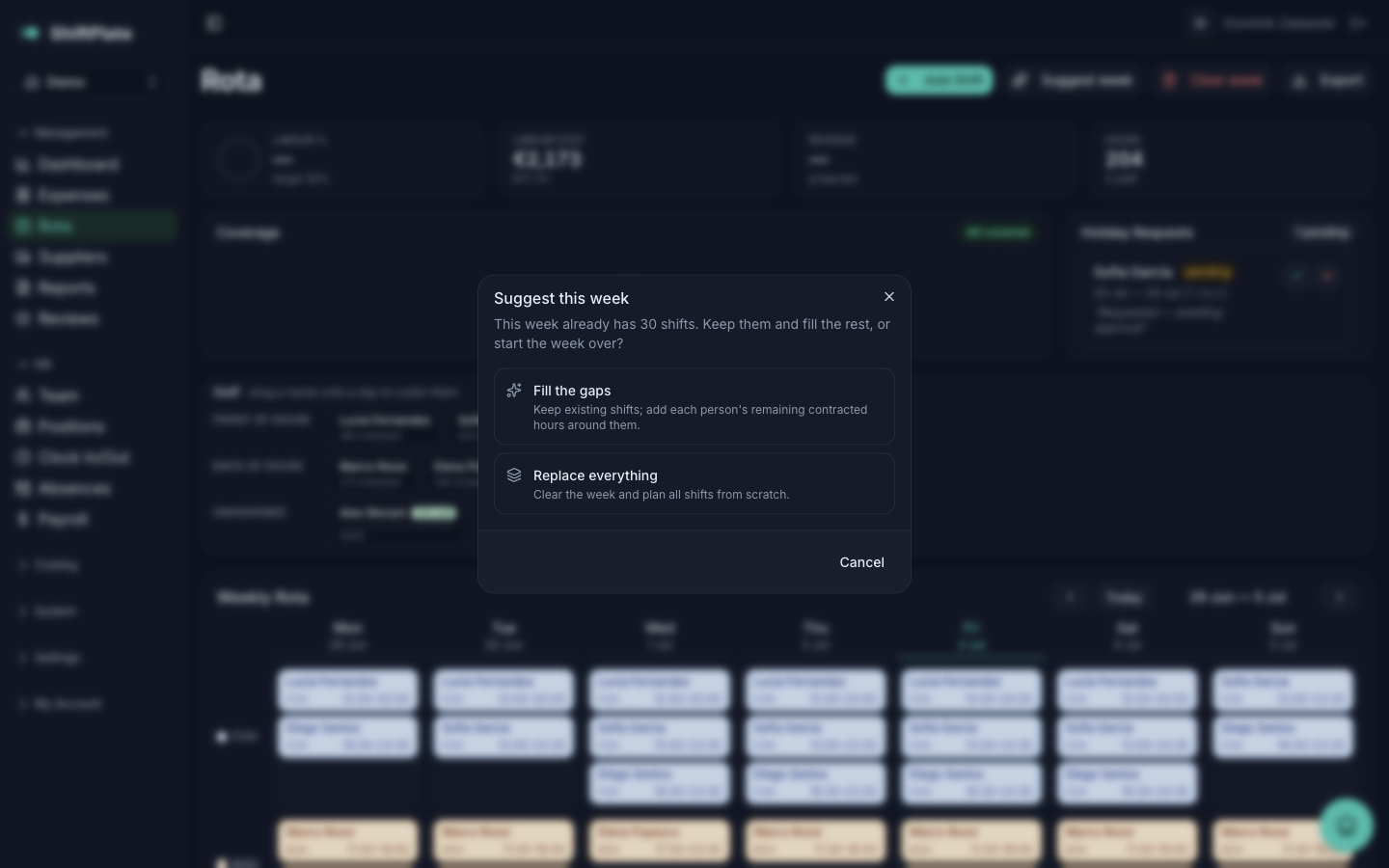
It plans around contracted hours, your shift templates, and what you've run in past weeks — so a stable week can come together in one click, ready for you to tweak.
Suggestions are a starting point, not the last word. Review the draft and adjust anything that doesn't fit — you always have the final say.
Clear or export
- Clear week wipes every shift on the visible week (after a confirmation) — a quick reset before replanning.
- Export downloads the week as an Excel file, which is the way to print it or share it outside ShiftPlate.
What's next
Those suggestions and coverage warnings lean on your shift templates. Shift templates & coverage sets them up.